

Bulk actions and bulk scheduling
Edit, shift or delete several posts at once, and schedule up to 30 photos or videos in one go.
Step by step
Turn on selection
In Networks › Posts (Calendar or List view) or Networks › Connected accounts, click Select. Tick the items you want; Shift + click selects a range, Ctrl + A selects everything, Esc cancels.
Act on posts
The action bar offers: Edit, Duplicate, Move to drafts and Delete. Edit lets you shift by N days (and hours), keep the day while changing the time, give all posts the same date, replace the text with a common text or add hashtags.
Act on accounts
In Connected accounts, selection lets you pause, reactivate, link to a brand or delete several accounts. A report shows what succeeded and any errors.
Open bulk scheduling
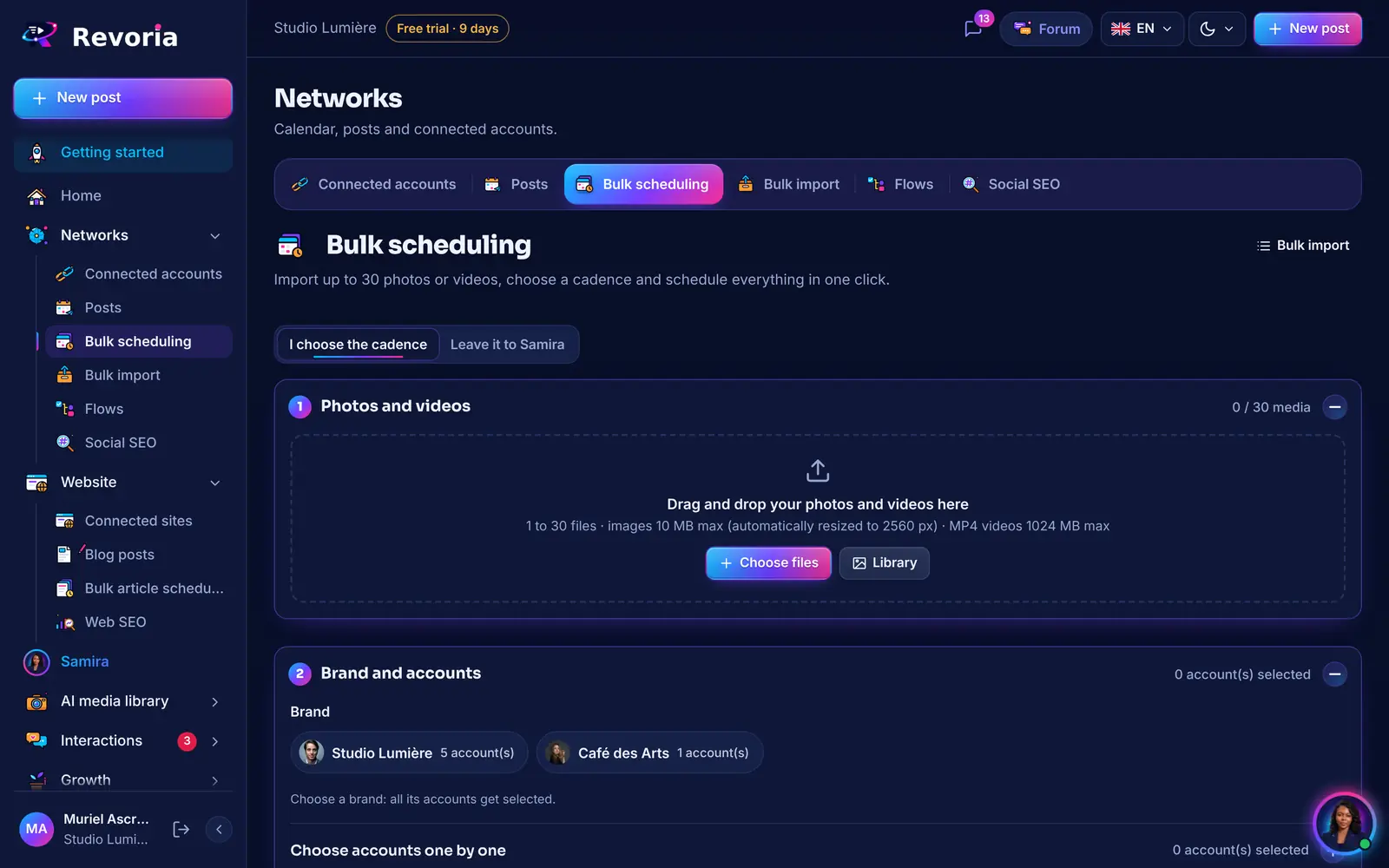
In Networks, Bulk scheduling tab: drag and drop up to 30 photos or videos. Each title uses the file name by default; the “Same title for all” and “Use file names again” buttons change them all at once.
Choose the rhythm
Choose the brand and accounts, then the rhythm: every day, weekdays, chosen days or N times a day, over a week, a month or until the media run out. You can also click “Leave it to Samira”.
Schedule everything
Check the schedule preview, add a common text if needed (signature, hashtags), then click Schedule everything. The page closes once the upload has succeeded.
Good to know
- Posts that are already live are skipped by “Move to drafts”.
- Deleting a post also deletes the posts from the same batch on the other accounts: a message reminds you before you confirm.
- For a schedule already prepared in a spreadsheet, use the Bulk import tab (CSV file).
A step doesn’t match what you see? Report it to support.