

Mobile app
Revoria on your phone, with the same account as on the web.
Web and Android
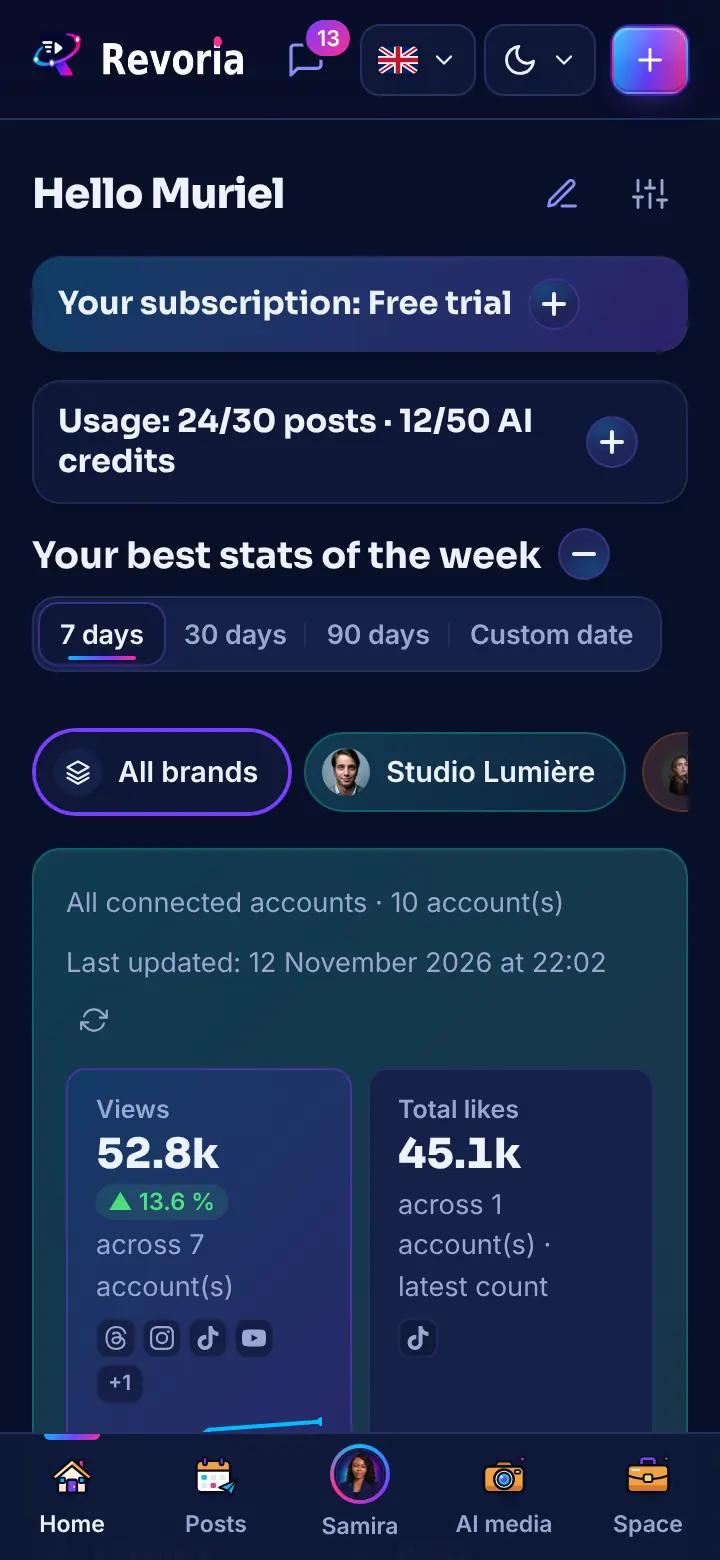
Step by step
Install the app
Only use the official Google Play and App Store links shown on this site when they are available. The app displays app.revoria.cloud: your accounts, brands, drafts and scheduled posts are already there.
Discover the animated home screen
When the app opens, the home screen shows the Revoria “R”, its orbits and your networks’ logos, a small Samira, then the Sign in and Create an account buttons. Sign-in offers the same methods as on the web: email and password, Google, Facebook or Apple.
Use the bottom bar
The bottom bar gives access to Home, Posts, Samira, the AI Media Library and your Space. Title bars are compact to leave more room for content.
Filter your calendars
In Posts and Articles, a single scrolling row and a “Filters” button that reveals brand, network, site or status.
Use gestures
On iPhone, swipe from the left edge of the screen to go back to the previous page. A light vibration confirms tabs, switches and home screen buttons, if vibration is enabled on the device.
Good to know
- New app features reach the apps as soon as the server is updated; only native features (vibration, back gesture, launch screen) need version 2.7.1 from the stores.
- If “Reduce motion” is enabled on your phone, the home screen animation stops.
- Turn on notifications to be alerted if a post runs into a problem.
A step doesn’t match what you see? Report it to support.