

Audio, video editing and short clips
Create a voice-over or music, edit your videos (trim, text, sound, logo) and turn a long video into short subtitled clips.
Step by step
Create audio
AI media library › AI audio creation. Voice-over: write the text (or click “Let Samira write the text”), choose the voice, language and speed, then create the voice-over. You can also generate sound effects or music, or import an audio file (25 MB at most).
Turn audio into video
Networks don’t accept an audio file on its own: use “Turn into video” (background colour or media library images, waveform) to publish it.
Edit a video
AI media library › Video editing, then choose the video to edit. Trim: keep the useful part. Text: add a title with its appearance and disappearance times. Sound: mute it, replace it or mix it with a chosen or imported audio track. Logo: overlay a logo or watermark (transparent PNG recommended). Compression reduces the file size.
Launch short clips
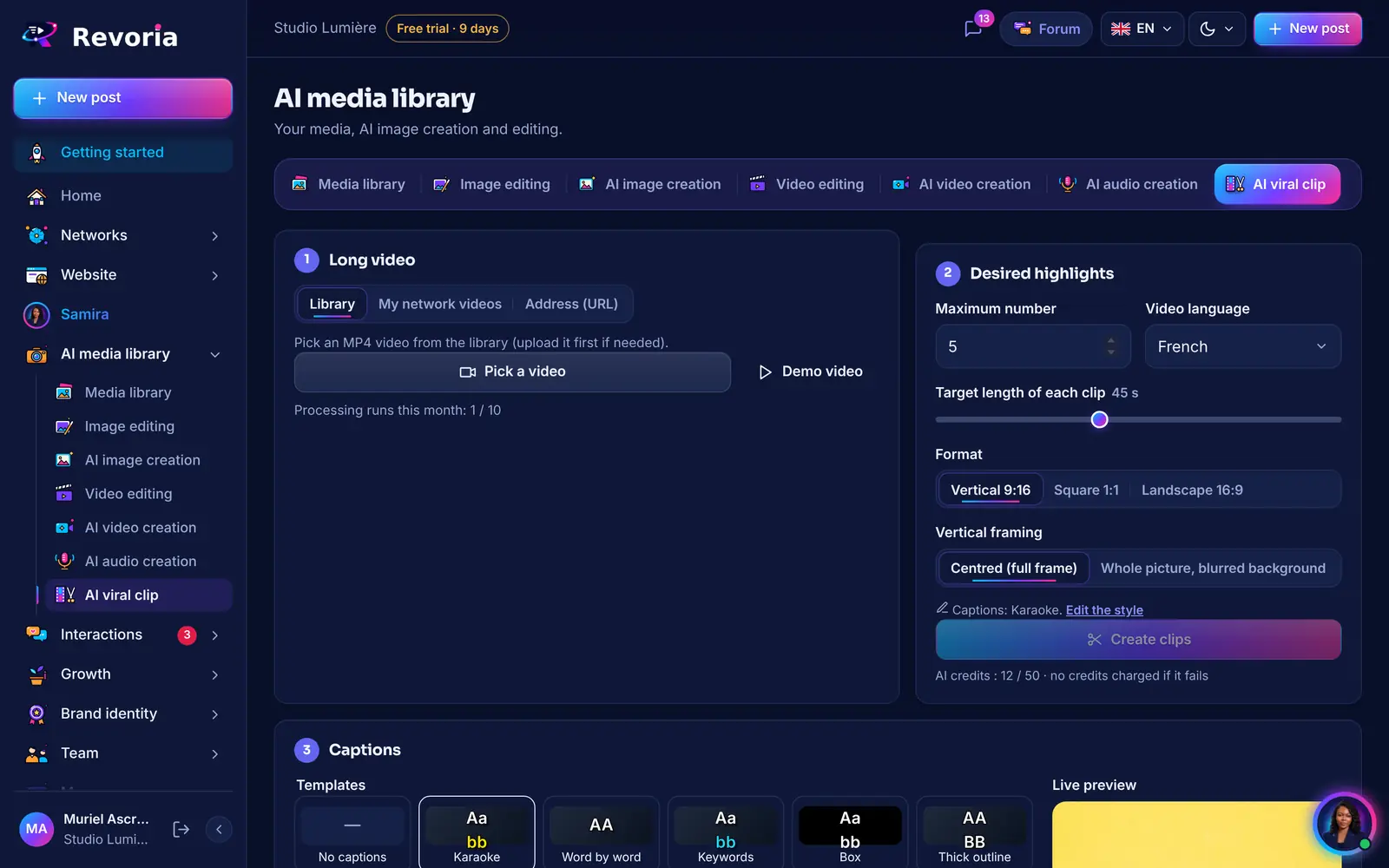
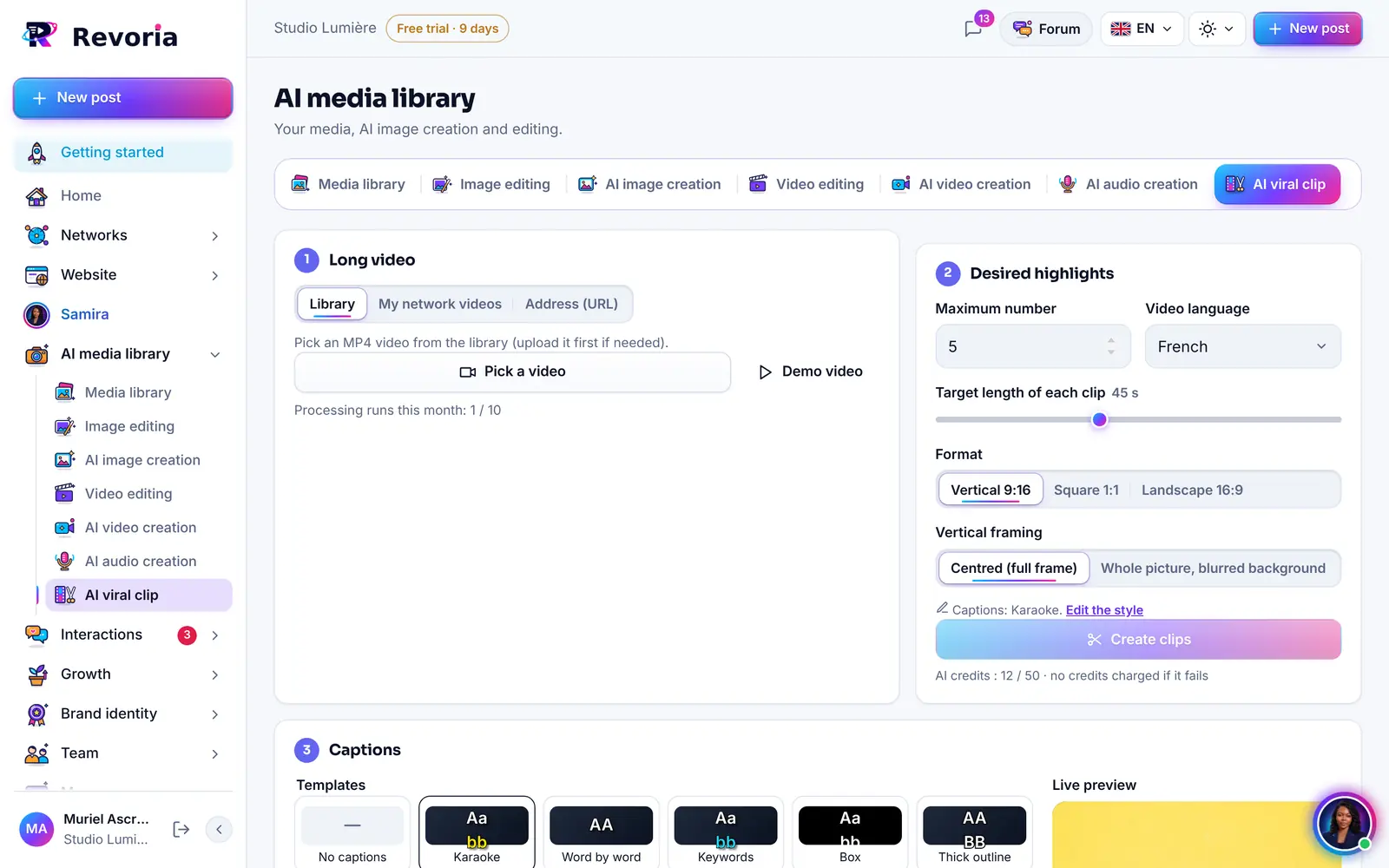
AI media library › AI viral clip (if the section is enabled for your workspace). Choose a long video (media library or address), the maximum number of clips, the language, the target length of each clip, the format (Vertical 9:16, Square 1:1, Horizontal 16:9), the cropping and the subtitle style, then click Create clips.
Get your clips
Revoria transcribes the video, picks the best moments, crops to the chosen format and adds subtitles. The clips land in the media library, ready to be scheduled.
Good to know
- Edited videos and clips are saved as new media: the original video is not changed.
- Short clip credits: depending on the source video length and your plan (by default 1 to 2 credits per minute, up to 30, 90 or 180 minutes of source video depending on the plan). Nothing is charged if a technical error occurs.
- Voice-over: 3 credits; sound effects: 5; music: 10.
A step doesn’t match what you see? Report it to support.