

Connect Claude or ChatGPT (MCP)
Control Revoria from your own Claude or ChatGPT assistant with the MCP protocol, with rights you choose for each connection.
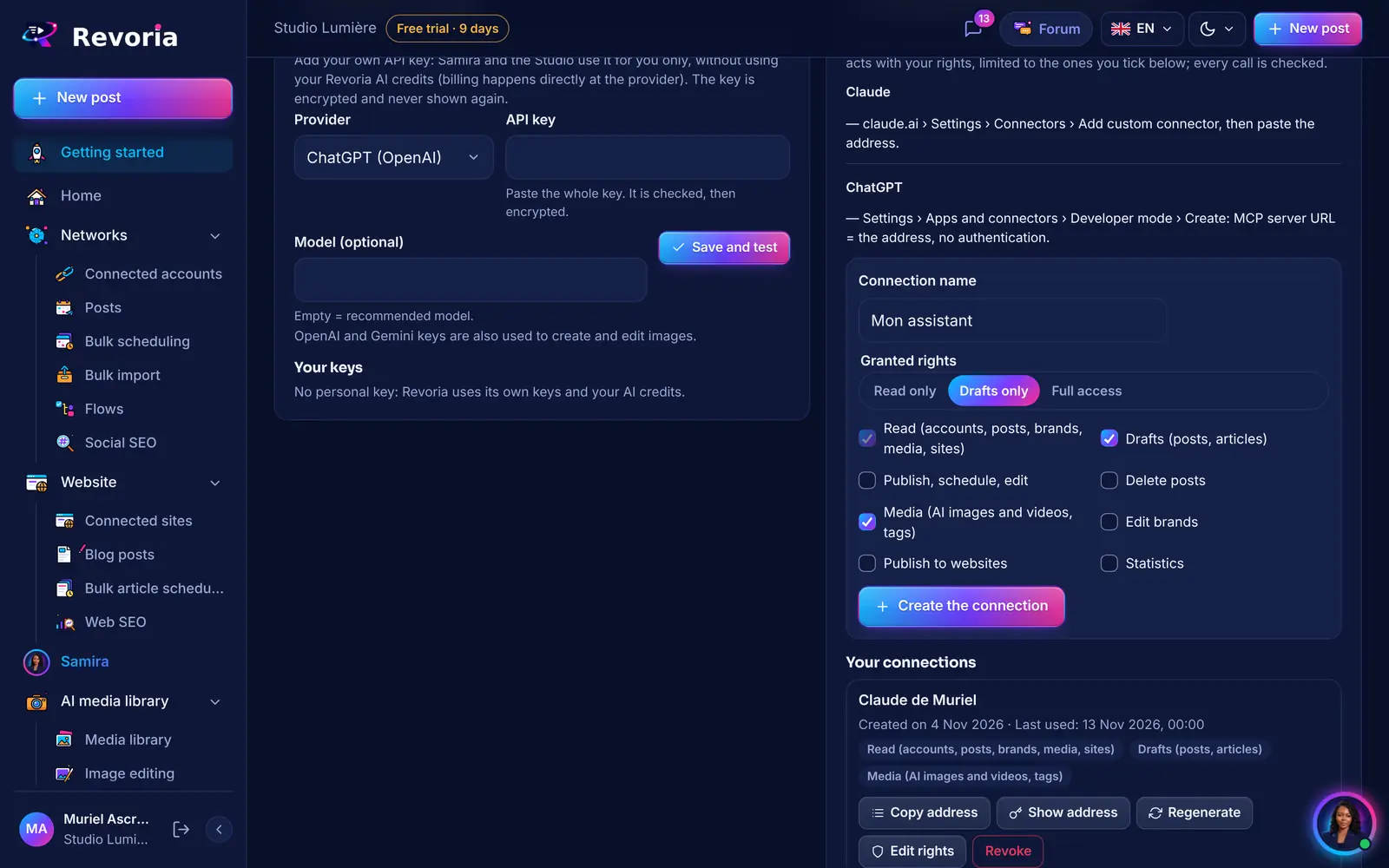
Step by step
Understand the idea
MCP is a standard that lets an AI assistant use external tools. Once Revoria is connected, you can ask Claude or ChatGPT to “schedule this post on LinkedIn tomorrow at 9 a.m.” or “show me this week’s posts.”
Create a connection
In My space › Technical settings, “AI connections (Claude, ChatGPT…)” section, name the connection and choose its rights: Read only, Drafts only, Full access, or tick exactly read, drafts, publish, delete, media, brands, sites and statistics. Click Create the connection.
Add it in Claude
Copy the address. On claude.ai: Settings › Connectors › Add custom connector, then paste the address.
Or in ChatGPT
In ChatGPT: Settings › Apps and connectors › Developer mode › Create, then enter the address as the MCP server URL, with no authentication.
Manage your connections
The “Your connections” list shows the creation date and last use. Show or Copy address displays it again, Edit rights applies from the next call, Regenerate creates a new address (the old one stops working at once), Revoke cuts off access.
Test it
Ask your assistant to “list my Revoria accounts.” If it replies with your connected accounts, everything works.
Good to know
- The address is a secret: it is stored encrypted and only shown to you. If in doubt, regenerate it.
- A connection created before the update keeps full access until you change its rights; regenerate it to display its address again.
- Posts created by your assistant appear in the calendar like any other: you stay in control.
A step doesn’t match what you see? Report it to support.